
Make a quick bill and save it in Tally
With a menu set up, a bill takes seconds: the customer's details, the quantities, and Save bill. Tally on the shop computer records it.
Before you start
- A quick bill menu.
- The shop computer on, with Tally open.
-
Step 1: Open Quick bill and fill in the customer
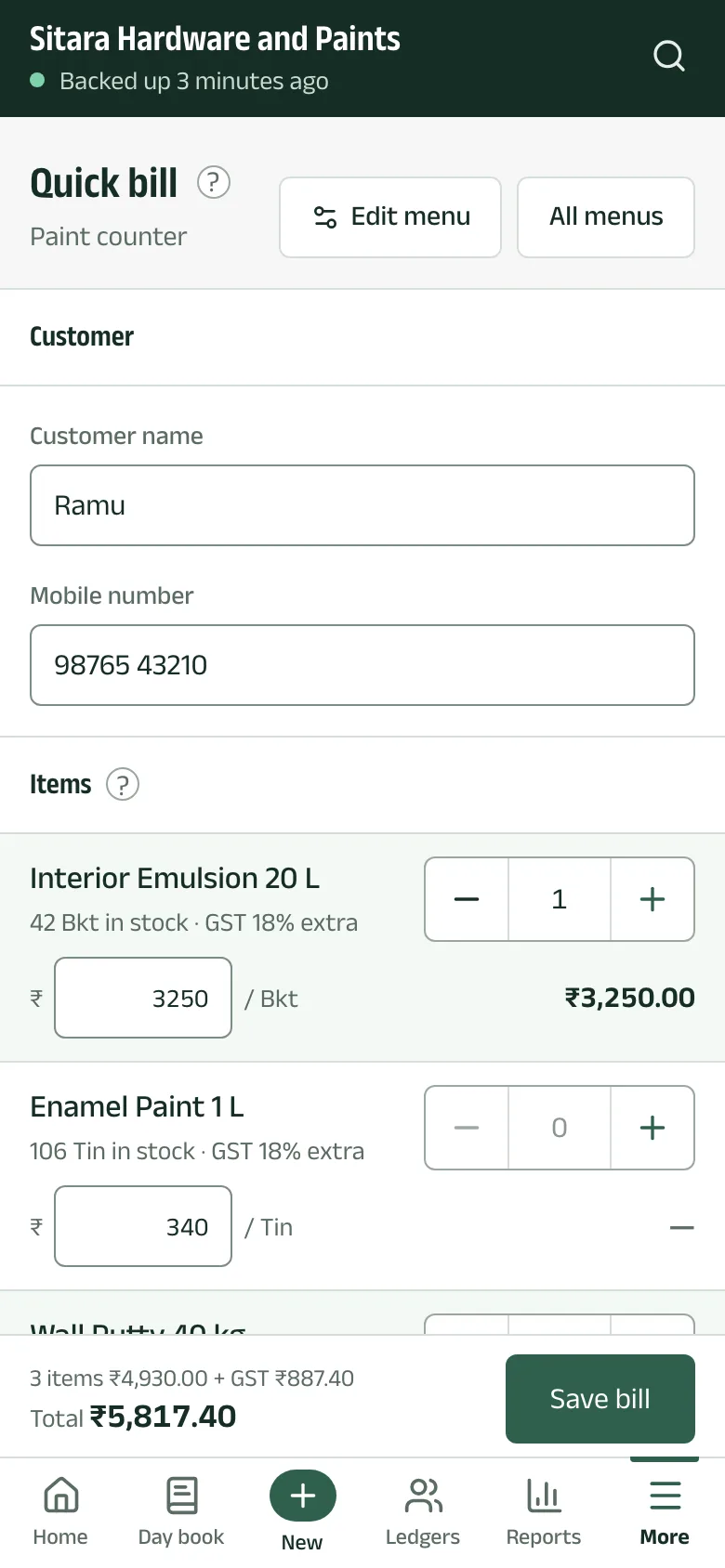
Tap Quick bill. Fill in what the menu asks, for example Customer name and Mobile number.
-
Step 2: Add the items
Tap + beside an item for one more, or type the quantity. The price can be changed for this bill. The bar at the bottom shows the items, the GST and the total as you go.
-
Step 3: Save the bill
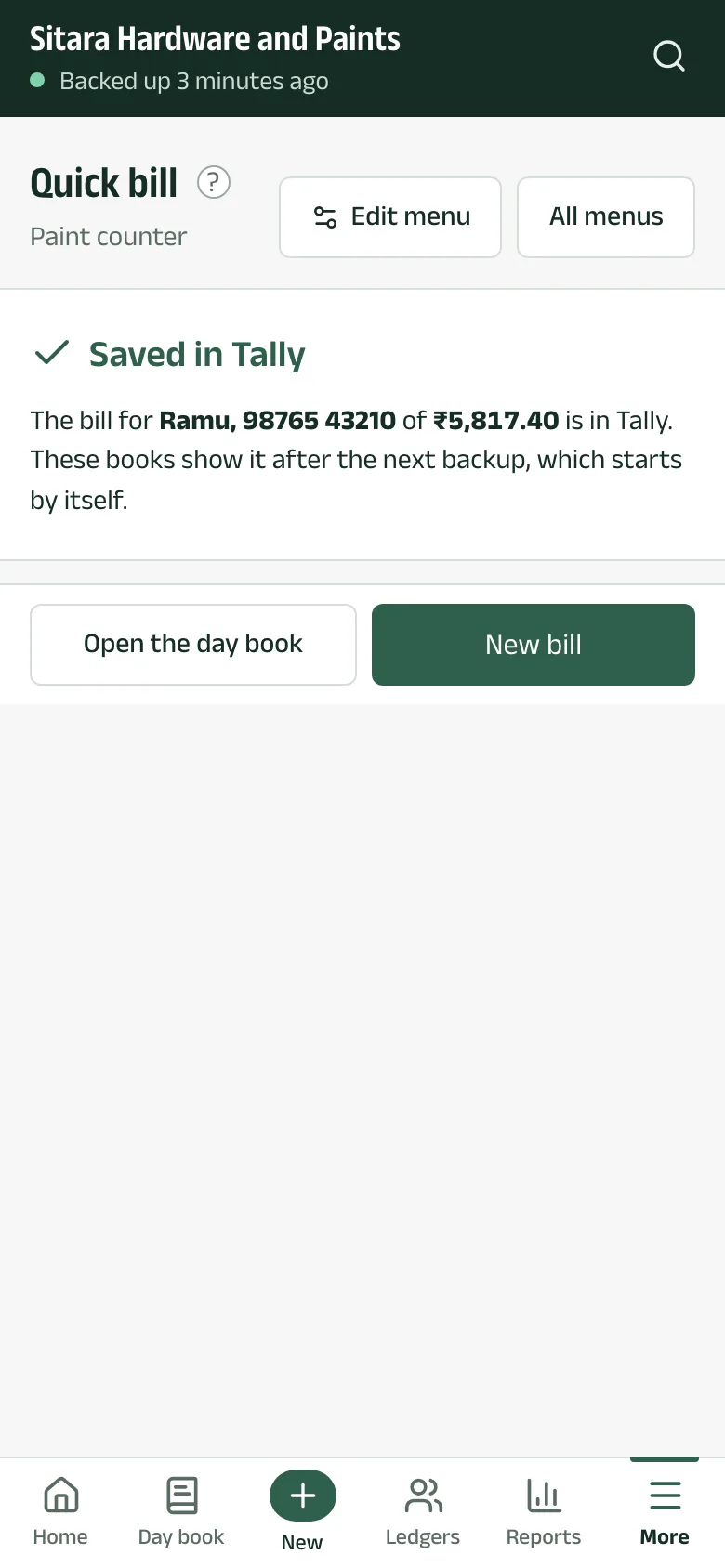
Tap Save bill. It says Saving in Tally… until Tally confirms, then Saved in Tally. New bill starts the next one; Open the day book shows it after the next backup.
Questions
- Who can make quick bills?
- The company's owner and managers.
- What if the connection drops while saving?
- If Aruvu cannot tell whether Tally saved the bill, it says Check Tally for this bill. Look in Tally's day book, then tap I checked Tally. Aruvu never saves the same bill twice on its own.
The pictures show Sitara Hardware and Paints, an invented shop. Its customers, suppliers and figures are made up.