
Record a sale invoice in Tally from your phone
For a sale to a customer on credit, use the full sale form. It uses your ledgers and stock items from Tally and checks the totals before sending.
Before you start
- An owner or manager account.
- The shop computer on, with Tally open.
-
Step 1: Start a new sale
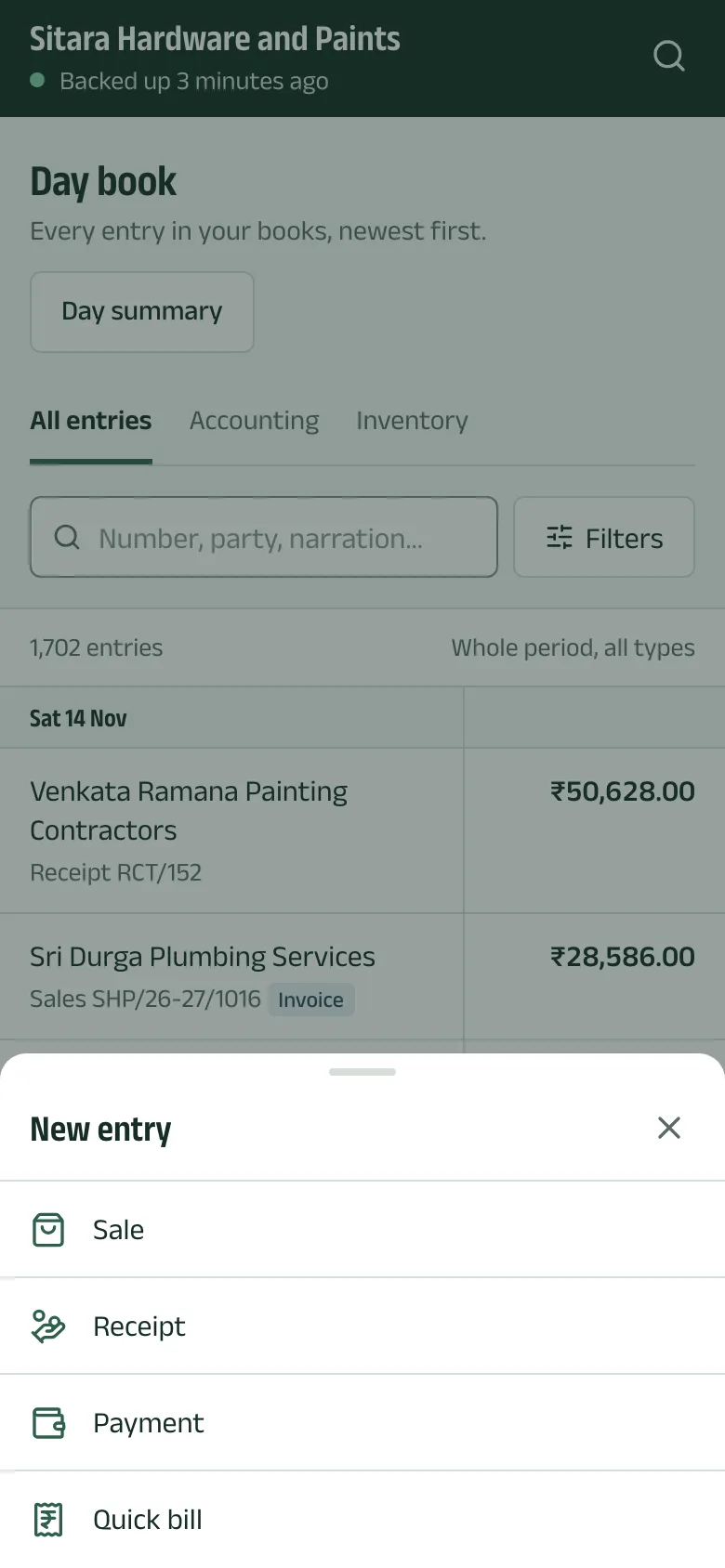
Tap New (in the middle of the tabs on a phone, at the top of Home or the day book on a computer). The New entry sheet offers Sale, Receipt, Payment and Quick bill. Tap Sale.
-
Step 2: Fill in the invoice
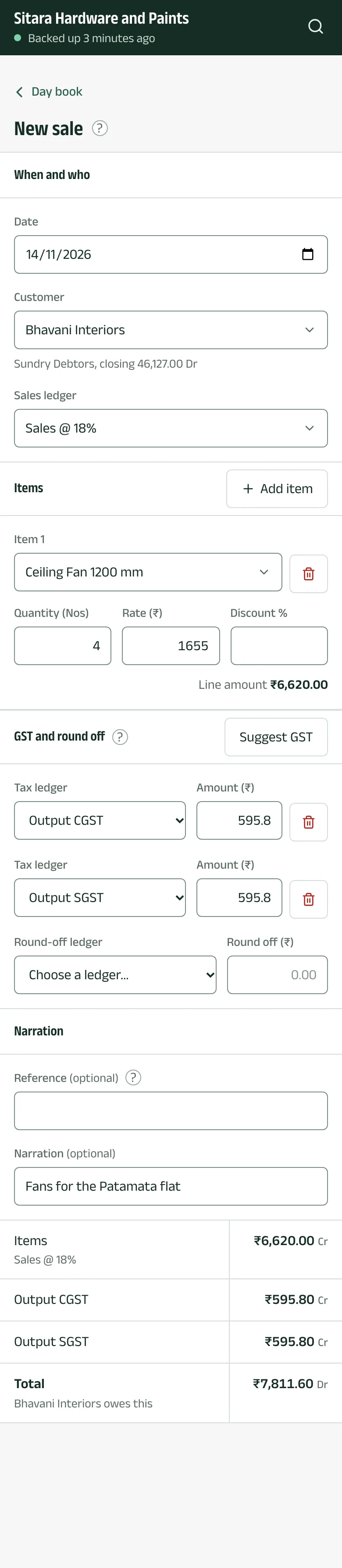
Choose the Customer, check the Date, and choose the Sales ledger. Under Items, pick each item, its quantity and rate (it starts at the last rate) and any discount. Suggest GST fills the tax ledgers for the items; check the round-off. Add a Reference and Narration if you like.
-
Step 3: Review and send
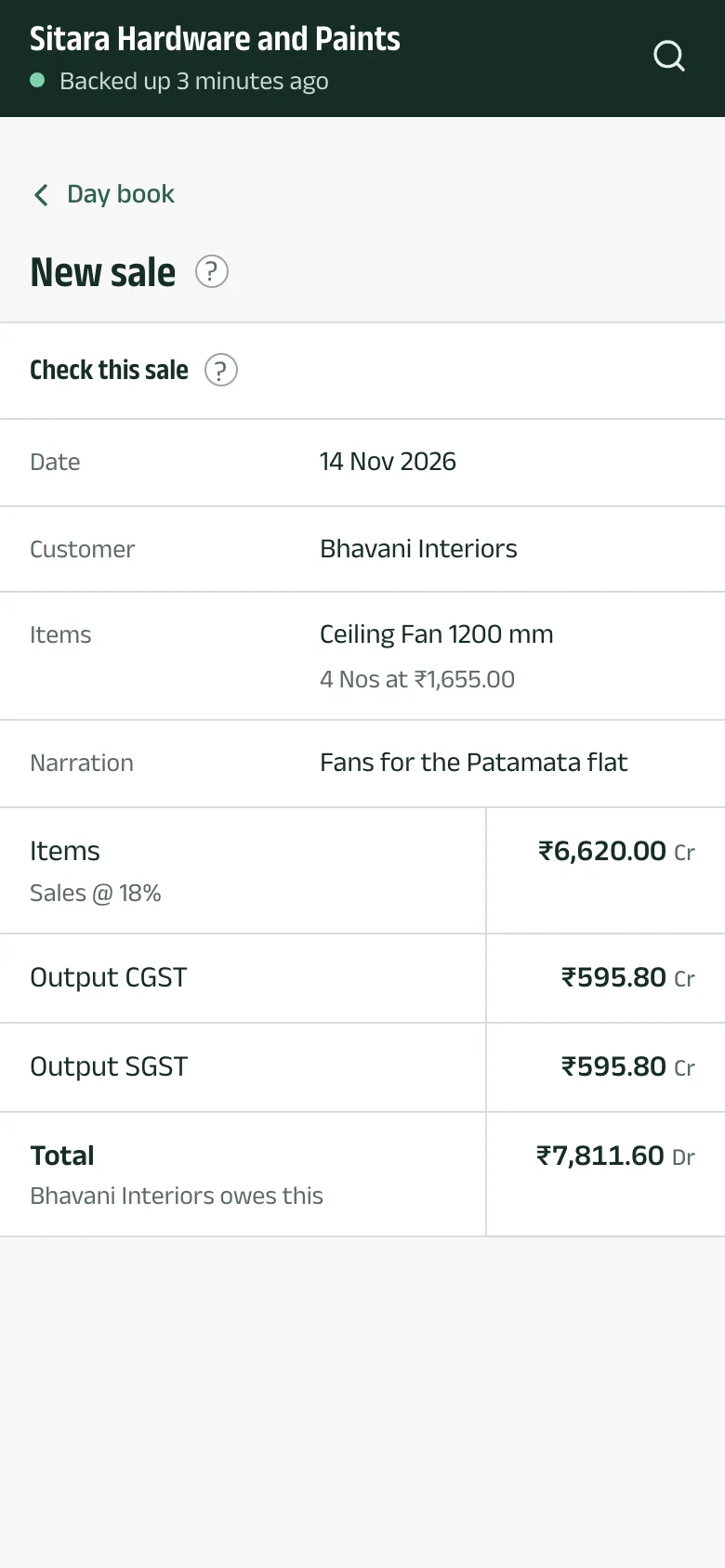
Tap Review. Check this sale shows the whole voucher. Send to Tally sends it; Back to the form lets you change it.
-
Step 4: Saved in Tally
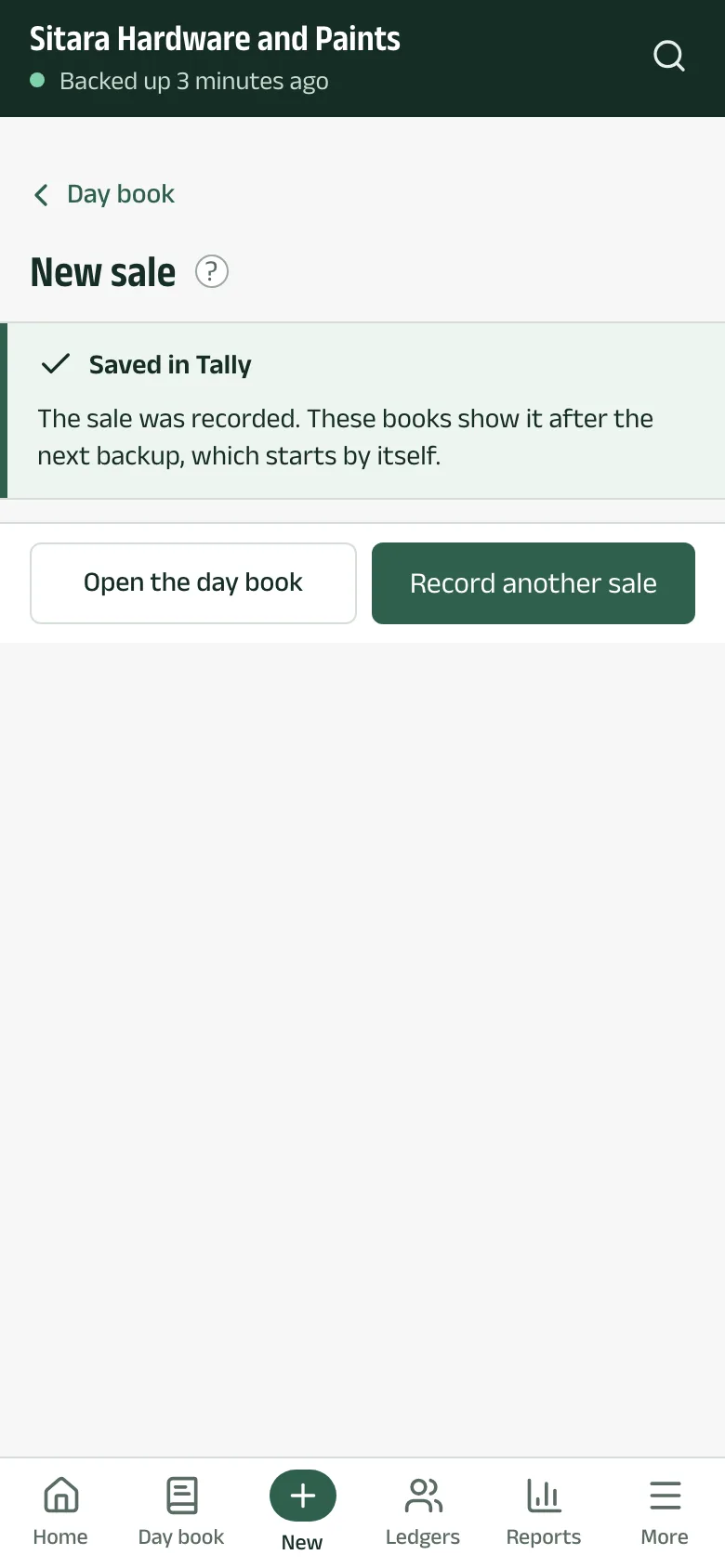
When Tally accepts the voucher, Aruvu says Saved in Tally. A fresh backup starts by itself, and the sale appears in the books once it finishes.
Questions
- Which vouchers can I enter?
- Sales, receipts and payments, and quick bills. Purchases and journals are entered in Tally.
- Can I see what was sent?
- Yes. Settings, under Sent to Tally, lists entries, bills and backups sent from the app and how each went.
The pictures show Sitara Hardware and Paints, an invented shop. Its customers, suppliers and figures are made up.