
Set up a quick bill menu for your counter
A counter that sells the same few items all day should not need the full sale form. Set up a menu once; staff then bill with a few taps.
Before you start
- The owner's account: only owners set up menus.
- The items as stock items in Tally.
-
Step 1: Start a menu
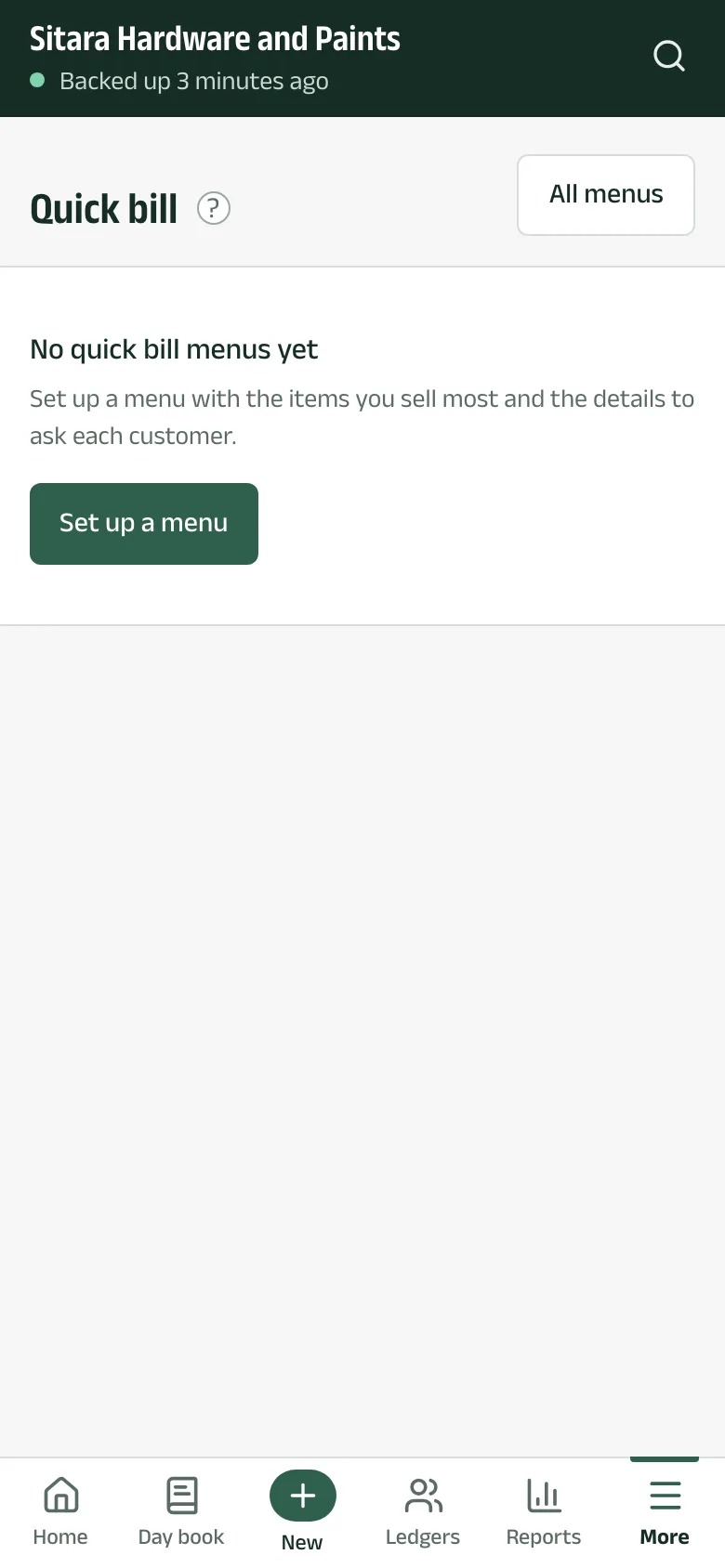
Tap Quick bill. The first time, it says No quick bill menus yet. Tap Set up a menu.
-
Step 2: Name it and add the items
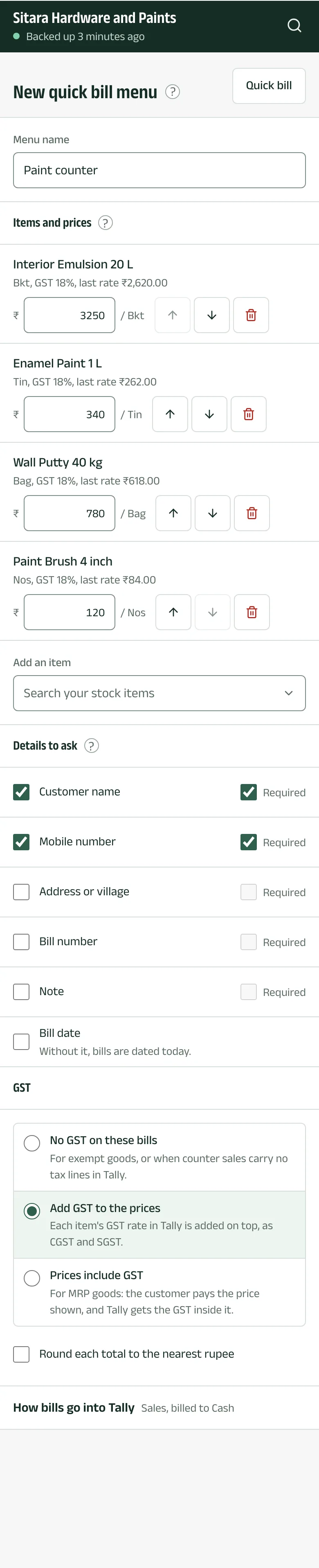
Give the menu a Menu name, such as Paint counter. Under Items and prices, use Add an item to pick your stock items from Tally. Each price starts at the item's last rate; type the counter's price.
-
Step 3: Choose the details to ask
Under Details to ask, tick what staff should fill in: customer name, mobile number, address or village, bill number, a note or the bill date, and which are required. Without a bill date, bills are dated today.
-
Step 4: Choose how GST works and save
Under GST, pick No GST on these bills, Add GST to the prices or Prices include GST, and whether to Round each total to the nearest rupee with a Round-off ledger. How bills go into Tally sets the voucher type, who the bill is to (often Cash) and the sales ledger. Tap Create menu.
Questions
- Can I have more than one menu?
- Yes, for example one per counter. All menus lists them, and staff pick the one they use.
- Where do the customer's details go in Tally?
- Into the voucher's party details, when the shop computer's Aruvu Tally Connect supports it. Otherwise into the narration; the menu screen says which.
The pictures show Sitara Hardware and Paints, an invented shop. Its customers, suppliers and figures are made up.